Guide our HR hero Hamza as he creates his first accessible PDF
Hamza gets an email from his boss asking him to email the new recruits the company onboarding document as an accessible PDF by tomorrow.
Hamza: "Oh no, I have no idea how to do that! What can I do?"
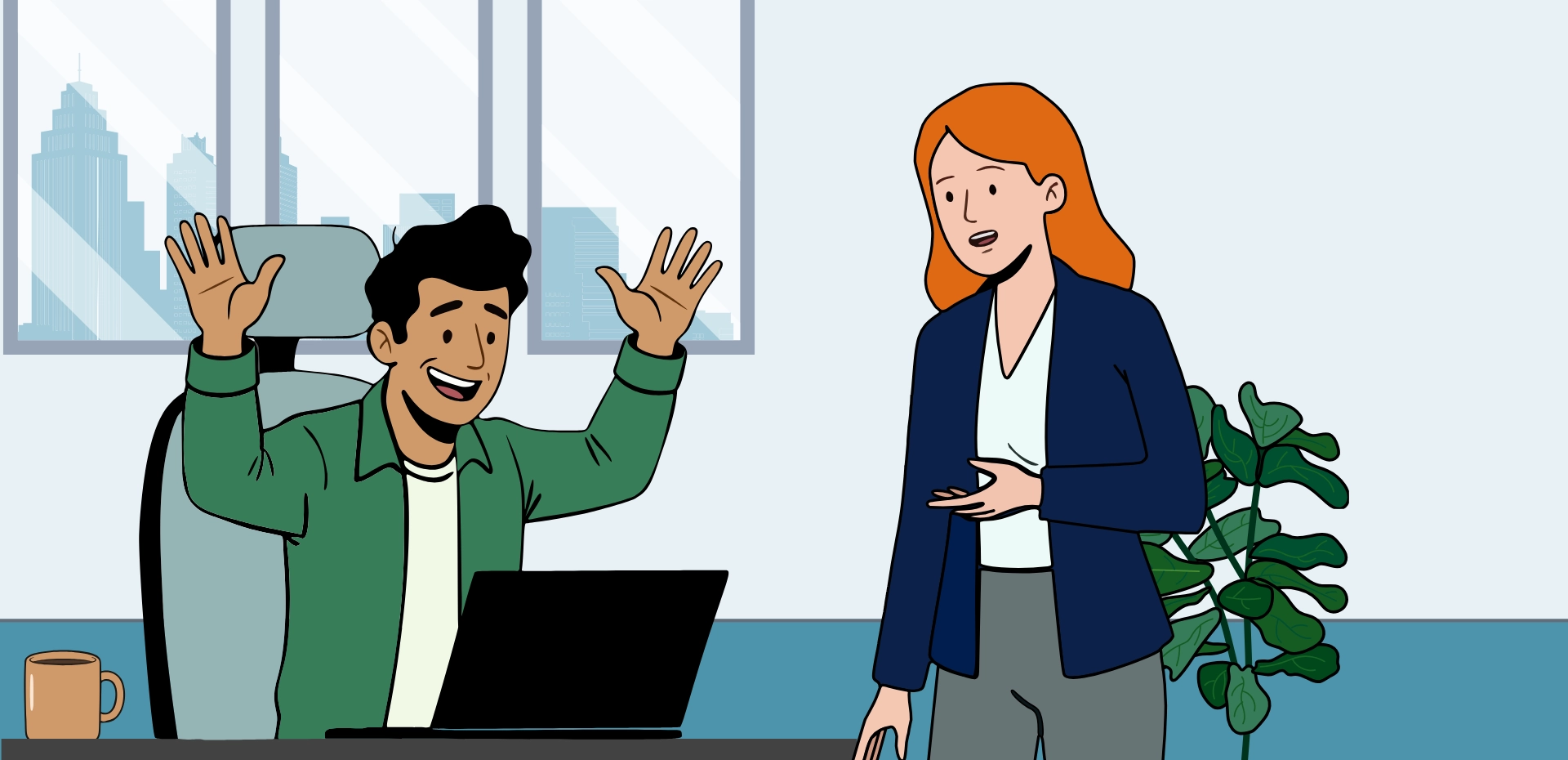
Hamza: "My colleague Julia usually knows about this kind of stuff, I'll ask her"
Julia: "Of course, I'll be glad to help."
Julia: "I'll talk you through the 7 steps you need to do starting with Step 1, adding image Alt Text.
If you need any extra tips, click the tip button below. I love talking about accessibility"
Julia: "I'll guide you through 7 essential steps to make your PDFs accessible to everyone. Each step ensures that people using screen readers, keyboard navigation, or other assistive technologies can access your document. Don't worry - I'm here to help if you get stuck"
Hamza: "Ok, I'm ready. Let's get started."
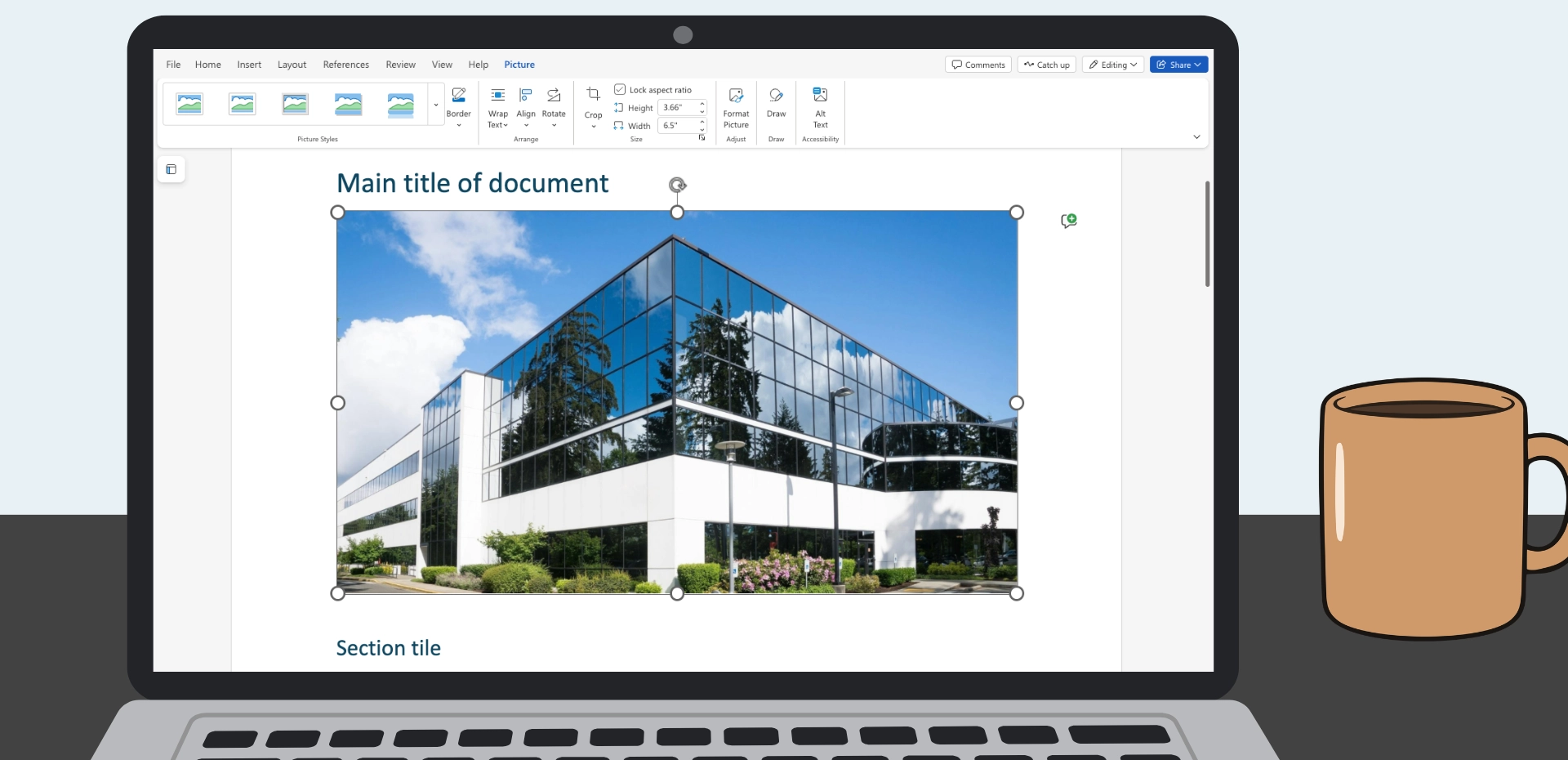
Julia: "This image needs a description adding to it called Alt Text."
Hamza: "What should I write for the Alt Text?"
Julia: "If someone can't see this image, what information would they miss? That's your alt text".
Demo Complete, well done
Julia: "Good alt text gives screen reader users the same information sighted users get from images. Let's move on to step 2, text fonts and colours"
Julia: "Describe what's important, not artistic details. For decorative images (design lines, patterns), mark them 'decorative' so screen readers skip them entirely".
Not quite...
Julia: "Thomas, a screen reader user, hears 'image, image of company building'. Screen readers announce 'image' automatically so no need to include it at the start".
Julia: "If someone can't see this image, what information would they miss? That's your alt text".
Oh no...
Julia: "Priya, a screen reader user hears 'image, I M G underscore 3 8 4 7 dot J P G' and can't understand what image is shown".
Julia: "If someone can't see this image, what information would they miss? That's your alt text".
You added the Alt Text: Modern looking company headquarters building with white panels and large windows
Demo Complete, well done
Hamza successfully learned about accessible PDFs
Want to go further? Test your PDFs with a keyboard and screen reader users for feedback.